This should be the first app you should install on your synology. Synology Photos allows you to back up and share photos from folders and from your phone. Use the following steps as a guide to get up and running with photo backup and sharing from your Synology.
1: Log into the Admin account on your Synology
2: From the package Center, Install Synology Photos
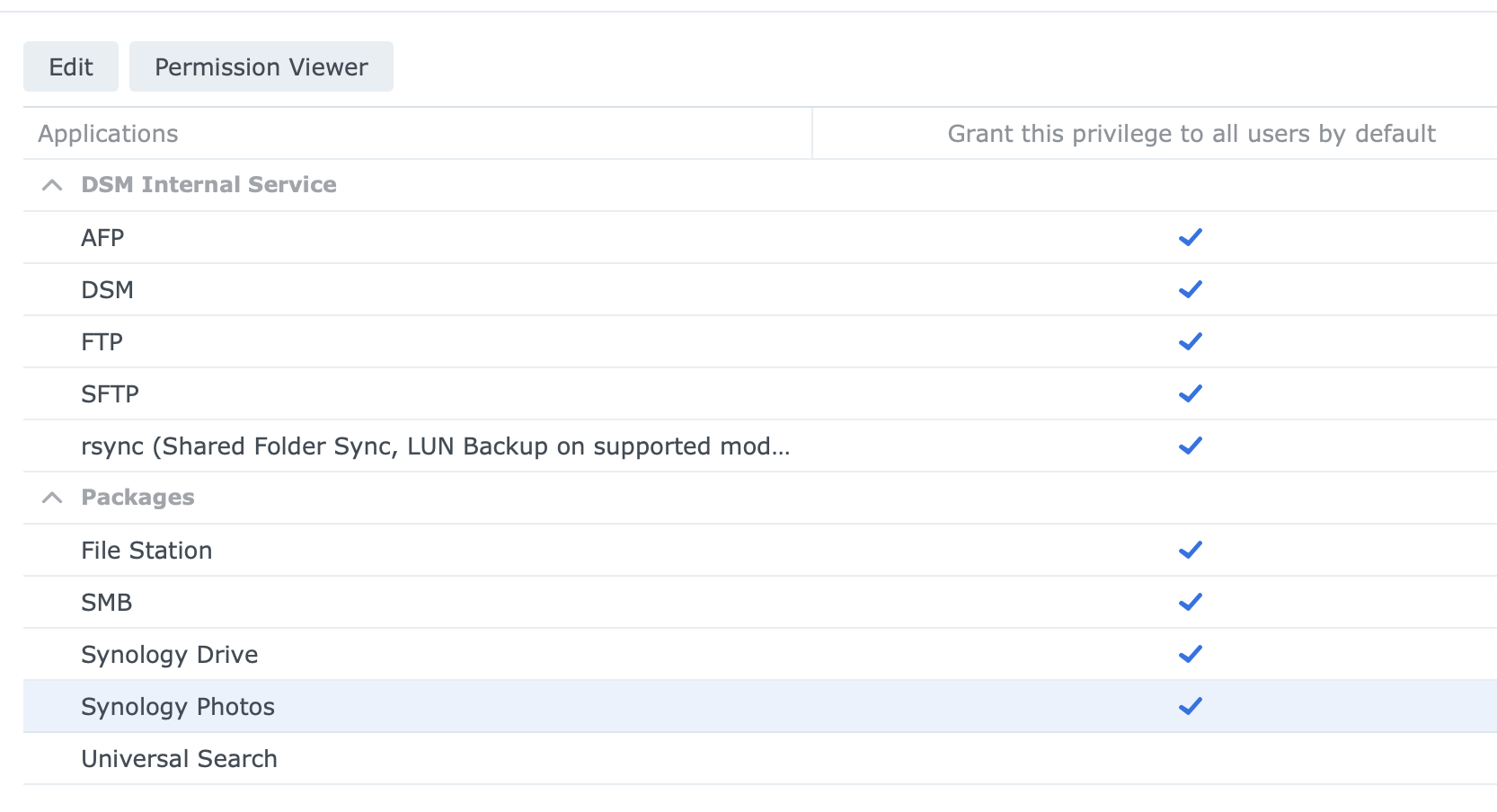
2: Launch Control Panel
3: Under Services, Application Privileges, double click on Synology Photos
4: Click on Default Privilages
5: Check –>> Grant this privileges to all users by default
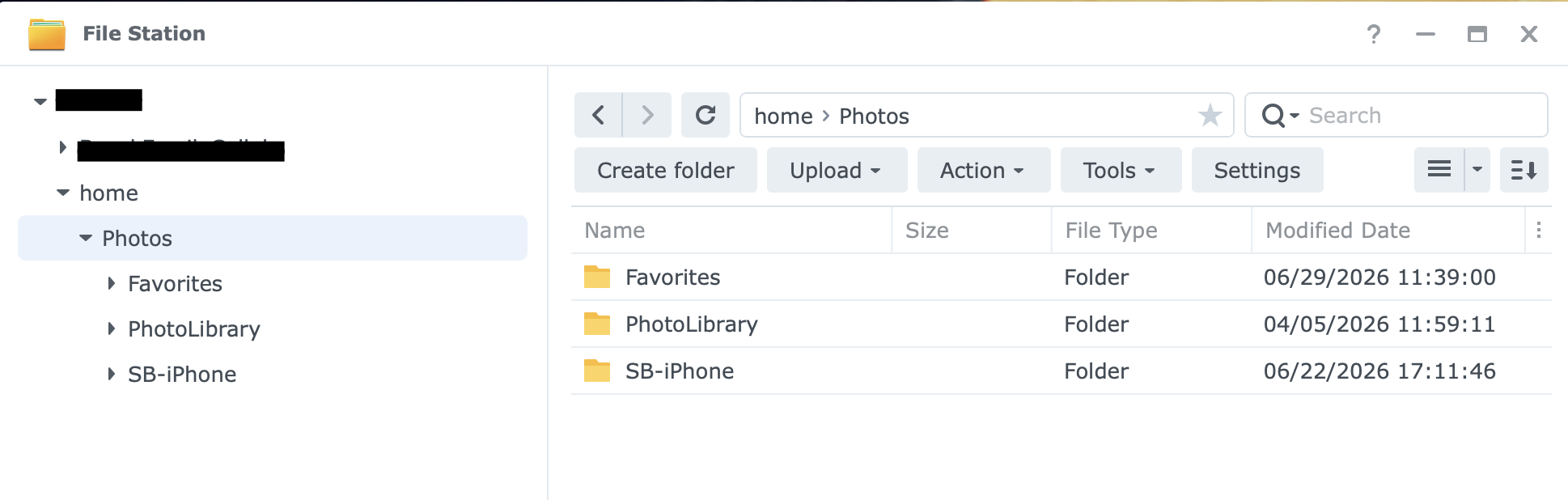
Once Synology Photos has been installed, and permissions granted, users will see a Photos folder in their home folder.
You can now drop your photos and photos folders folders into this location.
Photos dropped to this location will be viewable via Synology Photos, which can be launched via the Synology Photos app on the Synology Desktop.
You can also install the Synology Photos app on your phone, to access your photos.
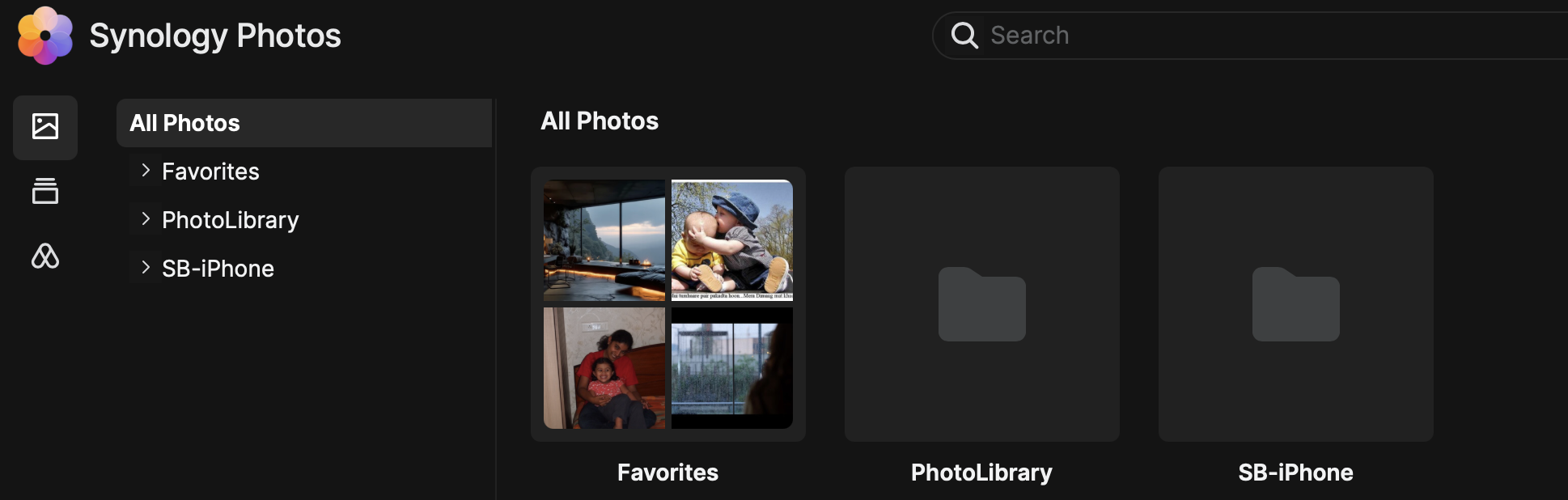
To share photos, you need to first create albums.
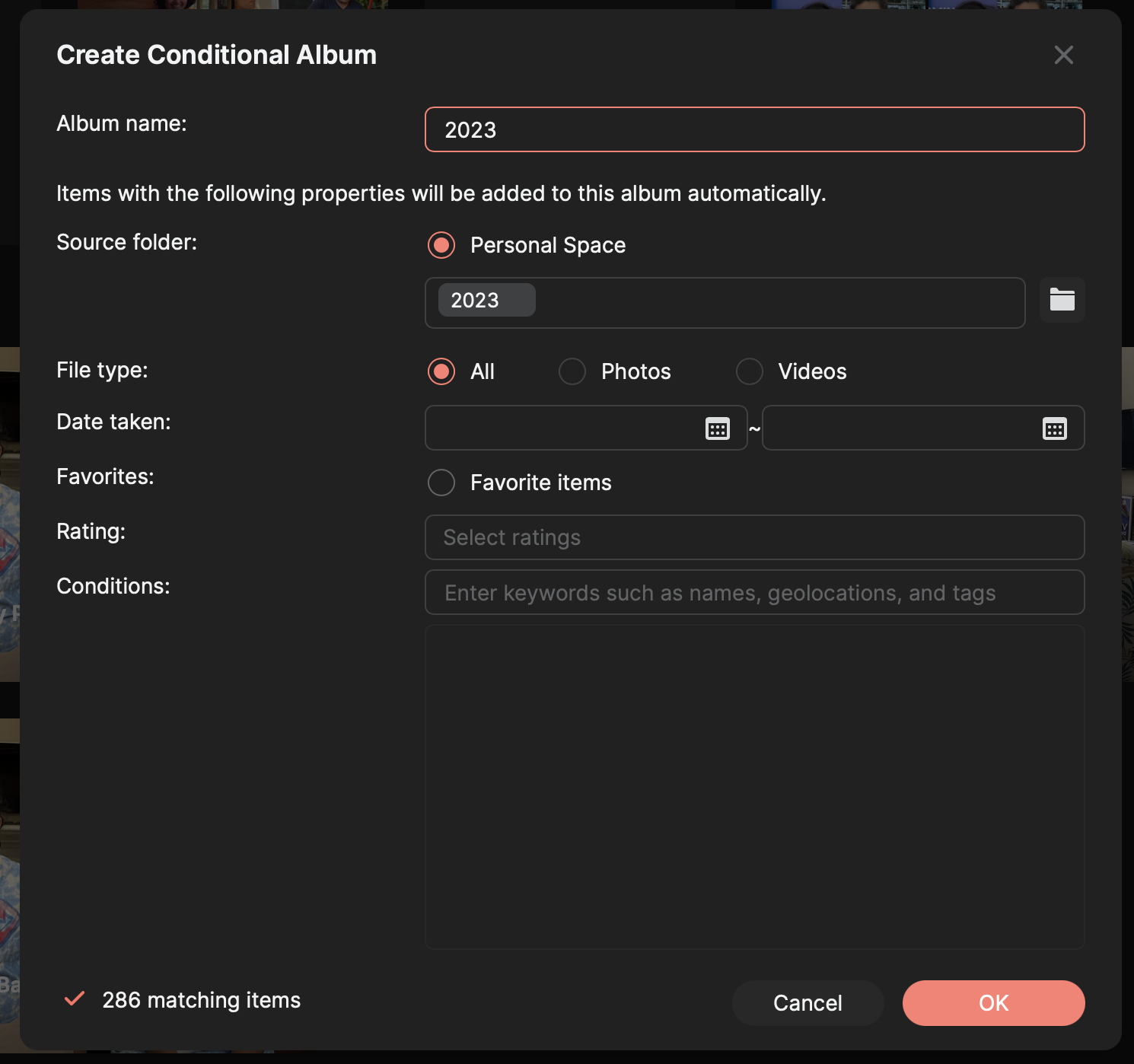
There are two choices, you can either select/upload photos, or you can create a “Conditional Album”.
Since my uploaded photos, were already organized in folders, I used the Conditional Album option and pointed to the folder where I saved my photos.
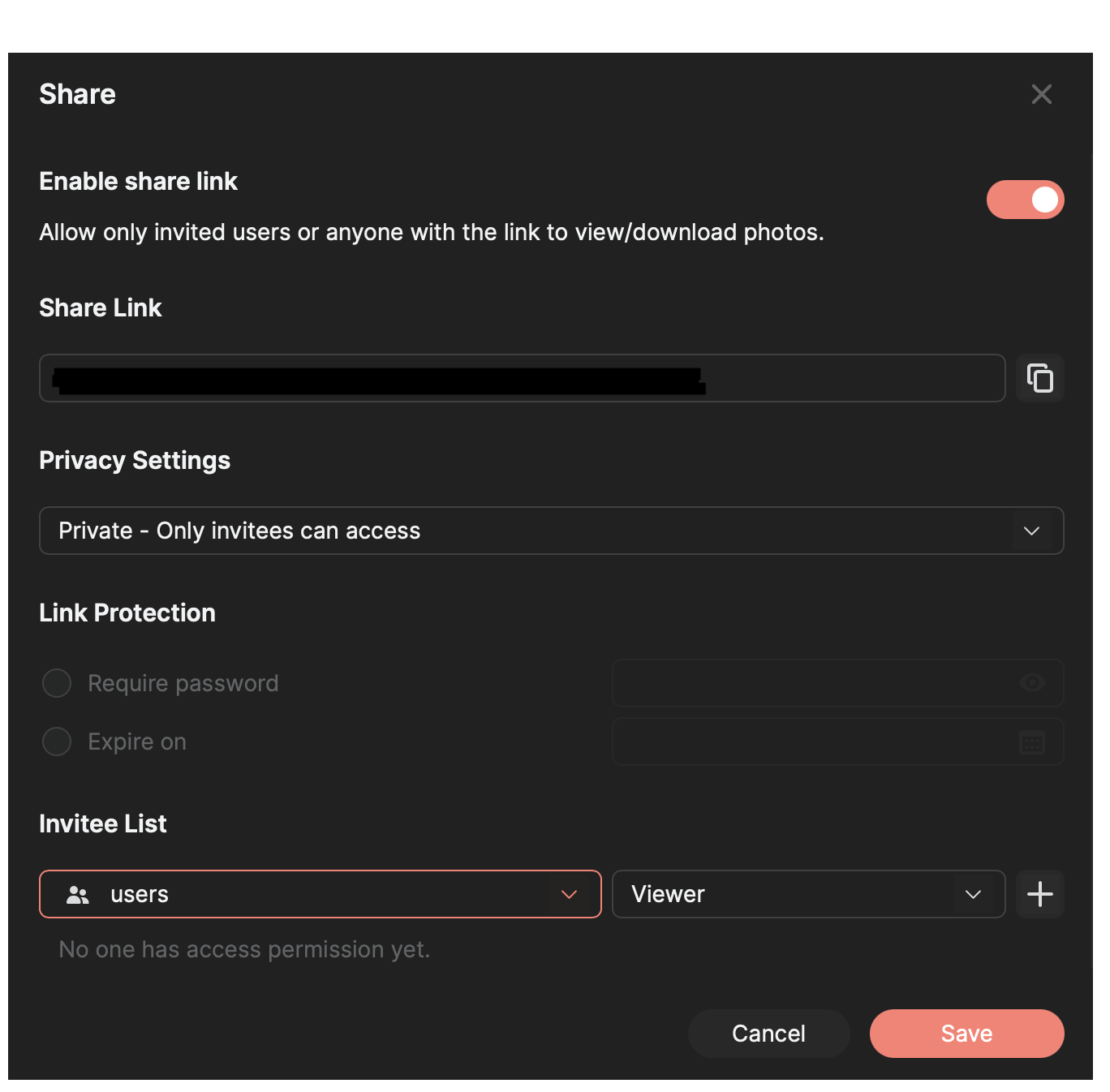
To share an album, tap on the three dots to the top right of the album icon, and tap on share.
I prefer to make the sharing private, and share it with the users on the Synology.
You can of course share it via a link and there is also an option to add a password and expiry date on the share.
Shared albums can be viewed on the phone app, as well as via the Synology Photos app.
The final part of the setup is getting the app on your phone to back up your photos.
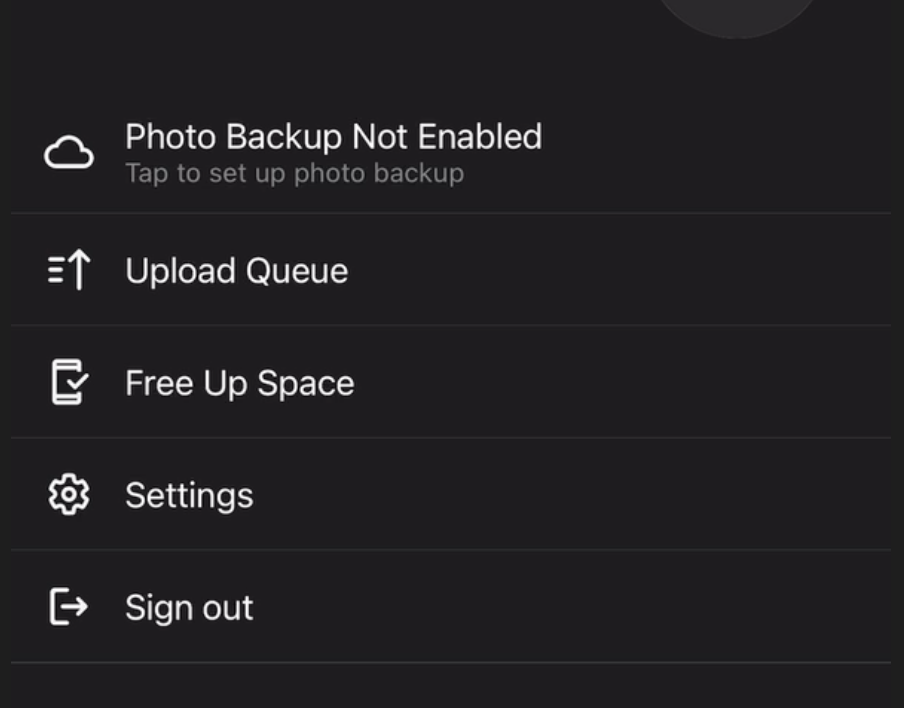
1: Tap on the hamburger menu at the bottom right to get into settings
2: Tap on Photo Backup Not Enabled
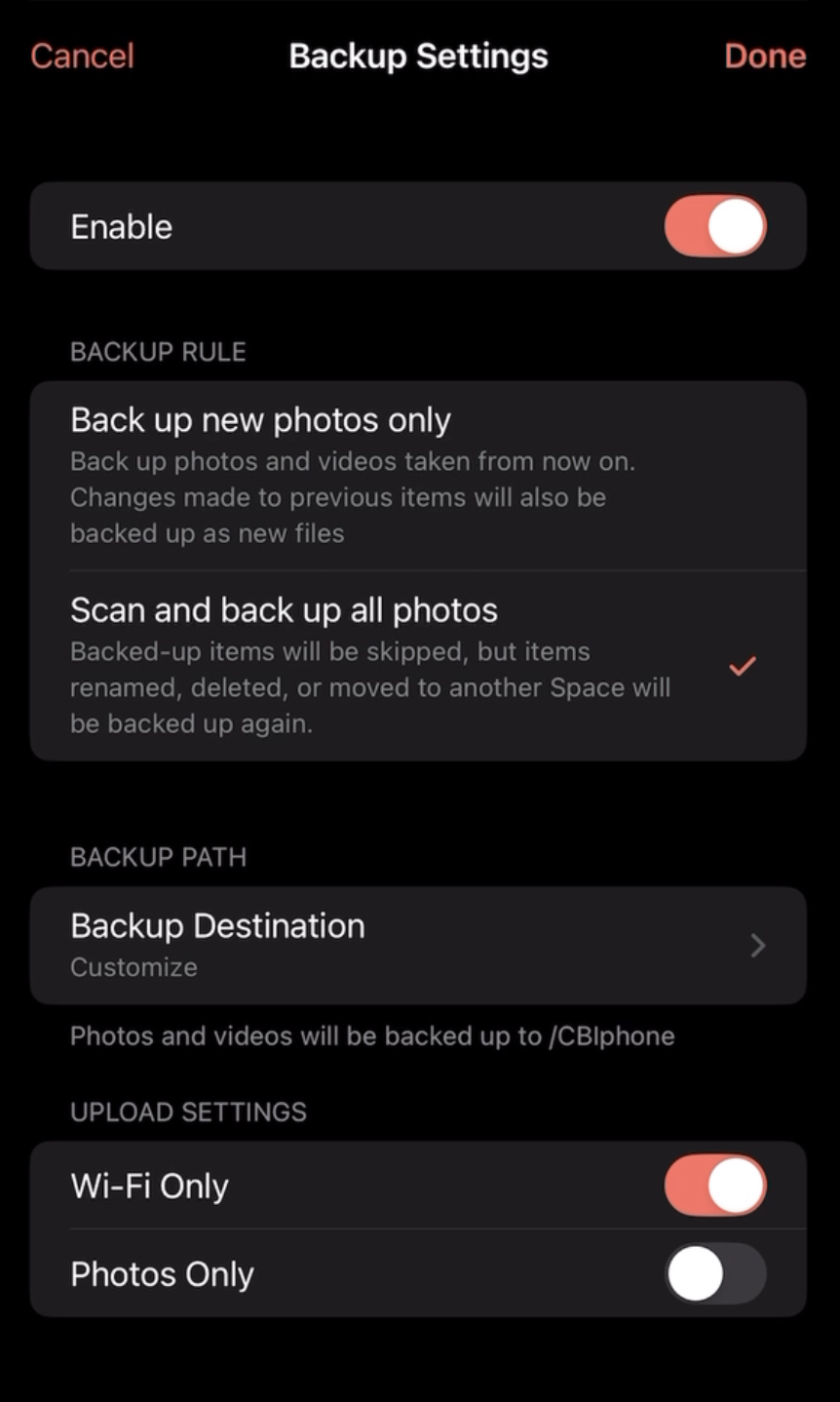
3: Enable photo backup by moving the slider to the right
4: Select “Scan and Backup all photos”
5: I selected “Customize Backup Destination” and created a folder named iPhone, within my Photos folder, separate from my uploaded photos folder. That way photos I take with my SLR stay separate from the photos I take using my iPhone.
6: I kept my upload settings to WiFi only.
That should be it! You should now be able to back up the photos from your phone and other devices on to your Synology, create albums and share albums with your friends and family.
 Chabak's Blog
Leave a comment